





Share and Transfer Files Across Every Device
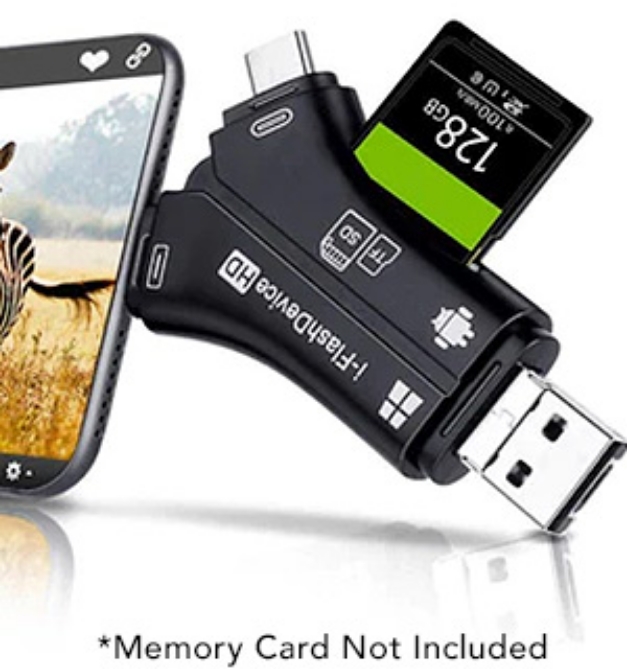
This useful tool is ideal for exchanging data between devices. Universal adapters for every kind of device means you can plug it into any smartphone, laptop, computer, or tablet to transfer files on and off using an SD Memory Card (sold separately).
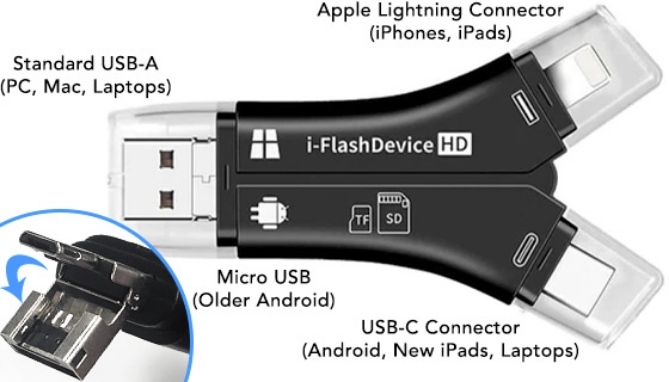
It is the perfect option for managing photos, backing up documents and more. The memory Card reader is easy to use and practical to carry around. Simply insert your memory card into the Card Reader and plug it into your device. One tip is a dedicated USB-C for the latest Android/Samsung phones, Tablets, iPads, and laptops. One tip is Apple's Lightning adapter for iPhones and older iPads. And one tip is a special 2-in-1 that transforms from a standard USB for PC/Mac computers into a Micro USB for older Android devices.
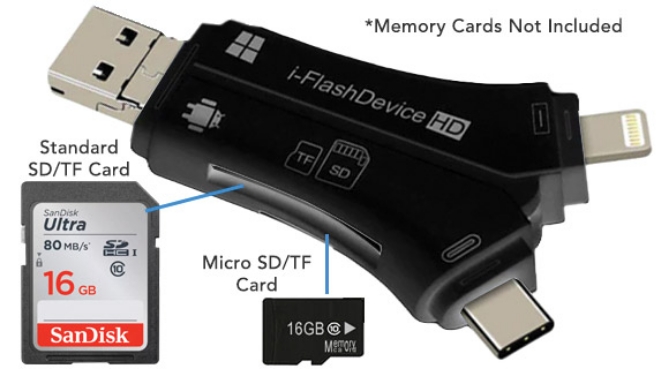
Store everything onto the memory card of your choice: use a full size SD card or Micro SD/TF Card. With this device, there's no size limit for your memory card, so the sky's the limit! We have a 16GB memory card available here.
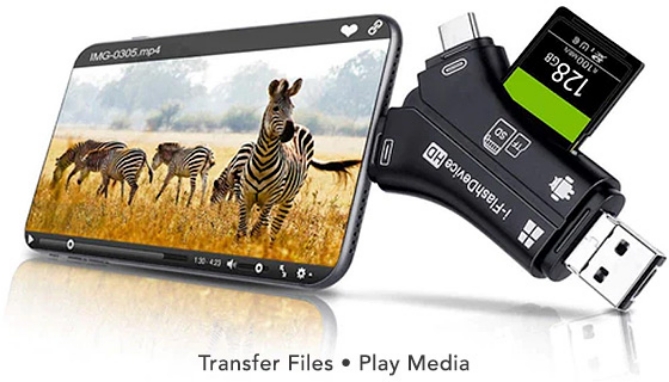
You can play media directly off of your memory cards while this is plugged into your device or transfer all your files across devices or store them on a main computer. Transfer pictures directly to a friend's device in the highest resolution possible. This is perfect for saving and storing all of your photos, documents, videos, music, and so much more.
iPhone users will need to download a filebrowser app from the APP STORE, like one called i-FlashDevice. And YES this will be compatible with the latest iPhone 15, announced in 2023 that has USB-C input.
FEATURES and BENEFITS:
- Universal Data Transfer Stick and Card Reader
- Tips Include: Apple Lightning, USB-C, Standard USB, Micro USB
- Use Your Own SD Card for Storage
- Compatible with All SD Cards and Micro SD/TF Cards
- Transfer Data: Photos, Videos, Documents, Files and More
- Plays Media Directly
- Works with iPhones, Samsungs, iPads, Mac/PC, and Everything In Between
- Compact SIze Perfect for Travel
- Share Photos and Videos with Friends in Full Resolution
- Backup and Store Your Precious Memories Across Devices
Modern smartphones allow us to fit a camera, camcorder, walkman, phone, pager, and computer right in our pockets.
So why is it so hard to transfer my cherished family photos from my phone onto my computer? Wouldn't it be much easier if our phones came with memory cards that we can just plug right into our computer?
Well, this device lets you do just that! Simply plug it into your phone and you can instantly exchange data between devices. Whether your phone has a USB-C, Lightning, or Micro USB port, this is compatible!
This device is much more than meets the eye. Want music from your computer onto your phone? This can do it. Need your pictures and videos from your camera on your phone? Easy. Want to save that priceless family vacation photo onto a hard drive? No problem!
It's a wonder why it took this long to solve such a simple problem.
So why is it so hard to transfer my cherished family photos from my phone onto my computer? Wouldn't it be much easier if our phones came with memory cards that we can just plug right into our computer?
Well, this device lets you do just that! Simply plug it into your phone and you can instantly exchange data between devices. Whether your phone has a USB-C, Lightning, or Micro USB port, this is compatible!
This device is much more than meets the eye. Want music from your computer onto your phone? This can do it. Need your pictures and videos from your camera on your phone? Easy. Want to save that priceless family vacation photo onto a hard drive? No problem!
It's a wonder why it took this long to solve such a simple problem.
You Might Also Like

This full-sized wrist rest supports a natural hand position so you can work, game in comfort for hours.
#11104
$9.99
$5.00

The HyperDrive Adjustable Laptop Stand does more than elevate your screen. It transforms your laptop into a fully connected workstation with an integrated USB hub built directly into the base.
#11051
$99.99
$34.99

31 Left!

Upgrade your personal or work space with this sleek, and sturdy adjustable stand. It's designed to make everyday phone use easier, keeping your device upright, visible, and within reach while you are working, streaming, video calling, or just keeping an eye on your notifications.
#11052
$14.99
$5.00

Store files, photos, videos, and more with the 16GB MicroSDHC Memory Card.
#9470
$14.99
$9.99
Question:
What do I need in order to use the Data Transfer Stick?
Answer:
The USB-C card reader lets you move photos, videos, and files between your memory card and your Android phone, tablet, or computer in seconds - no cables or Wi-Fi needed. It does not include a memory card, but you can use any SD Card or Micro-SD card you may already have. We also usually have them in stock, product #9470.
Question:
How do you use this with an Android Device?
Answer:
Insert your memory card (SD or Micro-SD) into the appropriate slot on the Data Transfer Stick. Plug the USB-C end into your Android device.
Your device will prompt you to select how you want to use the connection - tap "File Transfer" or "Open Files." Open your phone's built-in Files or My Files app. You will see the memory card appear as an external drive. Tap the card to browse its contents.
To copy files from the card to your phone, press and hold the file, tap Copy, navigate to your desired folder on your phone, and tap Paste. To move files from your phone to the card, do the same in reverse - locate the file on your phone, press and hold, tap Cut or Copy, open the card's folder, and tap Paste.
Before unplugging, go back to your Files app, tap the eject icon next to the card reader, and wait for confirmation before removing it. This prevents file corruption.
Your device will prompt you to select how you want to use the connection - tap "File Transfer" or "Open Files." Open your phone's built-in Files or My Files app. You will see the memory card appear as an external drive. Tap the card to browse its contents.
To copy files from the card to your phone, press and hold the file, tap Copy, navigate to your desired folder on your phone, and tap Paste. To move files from your phone to the card, do the same in reverse - locate the file on your phone, press and hold, tap Cut or Copy, open the card's folder, and tap Paste.
Before unplugging, go back to your Files app, tap the eject icon next to the card reader, and wait for confirmation before removing it. This prevents file corruption.
Question:
How do you use this with an Apple Device?
Answer:
For iPhone 15 or later, and modern iPads, use the USB-C end of the Data Transfer Stick. For older devices, use the Apple Lightning end.
Insert your memory card into the card reader slot until it clicks into place. Plug the either the Lightning or USB-C end into your iPhone or iPad. The Files app will open automatically or you might have to find it manually on your phone. Tap Browse at the bottom, then look for your card reader listed under Locations. Tap the card to browse its contents.
To copy files from the card to your device, press and hold the file, tap Copy, navigate to your desired folder on your iPhone or iPad, press and hold, and tap Paste. To save photos or videos directly to your Camera Roll, open the Photos app instead - it will prompt you to import media automatically when the card reader is connected.
To move files from your device to the card, locate the file in the Files app, press and hold, tap Move, and select the card reader as the destination.
When done on iPhone or iPad, simply unplug the card reader - iOS handles unmounting automatically.
Insert your memory card into the card reader slot until it clicks into place. Plug the either the Lightning or USB-C end into your iPhone or iPad. The Files app will open automatically or you might have to find it manually on your phone. Tap Browse at the bottom, then look for your card reader listed under Locations. Tap the card to browse its contents.
To copy files from the card to your device, press and hold the file, tap Copy, navigate to your desired folder on your iPhone or iPad, press and hold, and tap Paste. To save photos or videos directly to your Camera Roll, open the Photos app instead - it will prompt you to import media automatically when the card reader is connected.
To move files from your device to the card, locate the file in the Files app, press and hold, tap Move, and select the card reader as the destination.
When done on iPhone or iPad, simply unplug the card reader - iOS handles unmounting automatically.